> ## Documentation Index
> Fetch the complete documentation index at: https://citodocs.prostack.host/llms.txt
> Use this file to discover all available pages before exploring further.
# NodeJS Applications
> Deploy and manage NodeJS applications on Cito using Nginx + Passenger
Cito has support for LTS node versions, enabling you to run node applications via Nginx + Passenger. [NPM](https://www.npmjs.com/) and [Yarn](https://yarnpkg.com/) are installed by default, too.
By default we run NodeJS 20. Please contact support for additional versions. Only one version of Node can run at any time.
This method allows you to run a NodeJS application without requiring an application server or process manager like PM2.
Passenger handles proxying, process management, and other components that would otherwise require complex configuration. For more information you can review the Passenger documentation [here.](https://www.phusionpassenger.com/library/walkthroughs/basics/nodejs/fundamental_concepts.html)
Note that you can also run Node applications via Docker using our [Proxy Pass](/creating-sites/proxy-pass) site type.
## Adding a NodeJS application
To add a nodejs site in Cito, click the 'Create Site' button in the top right corner, and select the 'NodeJS' site type.
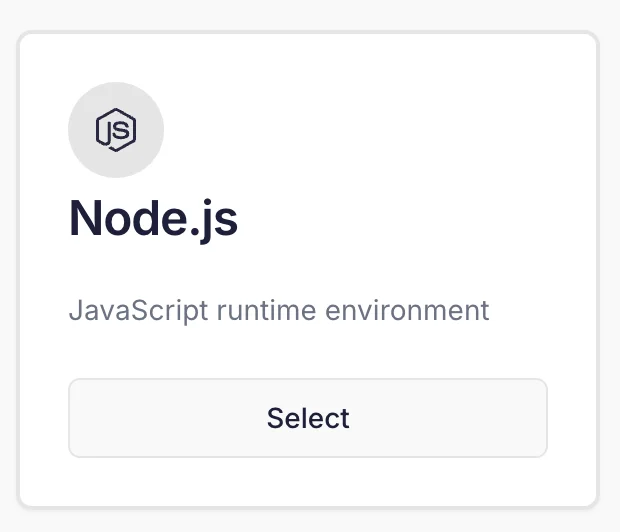 Fill in the domain name you wish to use, followed by an SSH user.
Once the site has been created you'll be presented with its details, including a preview URL.
## Setting up your application
Once you have created the site in Cito, you'll need to:
* Deploy your site's files. This can be done using SSH, for example by cloning a [Git](/deploying/git) repository or using SFTP to upload your content.
* Run `NPM install` to install the application, including any dependencies.
* Ensure your application has an `app.js` file as its entrypoint.
You should then be able to browse to the site at it's URL (or Preview URL).
## Restarting a NodeJS application
Passenger has a couple of methods to do this:
### restart.txt
One method to restart an application is by touching the file `restart.txt` in the application directory's `tmp` subdirectory. Once Passenger has noticed that the file's timestamp has changed, it will restart the application.
### `passenger-config restart-app`
The preferred method for restarting an application, is through the `passenger-config restart-app` tool. This tool can run interactively or non-interactively. If you invoke passenger-config restart-app without arguments, it will ask you which application you want to restart.
```
passenger-config restart-app
Please select the application to restart.
Tip: re-run this command with --help to learn how to automate it.
If the menu doesn't display correctly, press '!'
‣ /Users/phusion/testapp/public (development)
Cancel
```
For more information see the [Passenger docs](https://www.phusionpassenger.com/library/admin/nginx/restart_app.html).
## Custom Entrypoints
If your Node application does not use `app.js` as it's entrypoint, you can change this by editing the `passenger_startup_file` directive in your site's Nginx configuration.
This is found at `/etc/nginx/conf.d/.conf`.
Note you will need to be logged in as `admin` and use the `sudo` command to edit this file.
## Advanced use
Passenger has a number of customisable runtime options. For more information about deploying NodeJS applications using Passenger, see the official documentation here:
[https://www.phusionpassenger.com/library/deploy/nginx/deploy/nodejs/](https://www.phusionpassenger.com/library/deploy/nginx/deploy/nodejs/)
Fill in the domain name you wish to use, followed by an SSH user.
Once the site has been created you'll be presented with its details, including a preview URL.
## Setting up your application
Once you have created the site in Cito, you'll need to:
* Deploy your site's files. This can be done using SSH, for example by cloning a [Git](/deploying/git) repository or using SFTP to upload your content.
* Run `NPM install` to install the application, including any dependencies.
* Ensure your application has an `app.js` file as its entrypoint.
You should then be able to browse to the site at it's URL (or Preview URL).
## Restarting a NodeJS application
Passenger has a couple of methods to do this:
### restart.txt
One method to restart an application is by touching the file `restart.txt` in the application directory's `tmp` subdirectory. Once Passenger has noticed that the file's timestamp has changed, it will restart the application.
### `passenger-config restart-app`
The preferred method for restarting an application, is through the `passenger-config restart-app` tool. This tool can run interactively or non-interactively. If you invoke passenger-config restart-app without arguments, it will ask you which application you want to restart.
```
passenger-config restart-app
Please select the application to restart.
Tip: re-run this command with --help to learn how to automate it.
If the menu doesn't display correctly, press '!'
‣ /Users/phusion/testapp/public (development)
Cancel
```
For more information see the [Passenger docs](https://www.phusionpassenger.com/library/admin/nginx/restart_app.html).
## Custom Entrypoints
If your Node application does not use `app.js` as it's entrypoint, you can change this by editing the `passenger_startup_file` directive in your site's Nginx configuration.
This is found at `/etc/nginx/conf.d/.conf`.
Note you will need to be logged in as `admin` and use the `sudo` command to edit this file.
## Advanced use
Passenger has a number of customisable runtime options. For more information about deploying NodeJS applications using Passenger, see the official documentation here:
[https://www.phusionpassenger.com/library/deploy/nginx/deploy/nodejs/](https://www.phusionpassenger.com/library/deploy/nginx/deploy/nodejs/)