> ## Documentation Index
> Fetch the complete documentation index at: https://citodocs.prostack.host/llms.txt
> Use this file to discover all available pages before exploring further.
# First Steps
> Get started with Cito - logging in, adding keys, and creating your first site
If you've just received your welcome email and aren't sure how to get started with Cito, this guide will help. Below we explain the basics of logging in, adding keys, and creating a site.
## Log in
To log in, visit [https://cito.prostack.uk](https://cito.prostack.uk). You will be asked for your email address, and we'll send a magic link to verify your email.
Once your email address has been verified you'll be prompted to set up either a **Passkey** or **two-factor authentication** (TOTP).
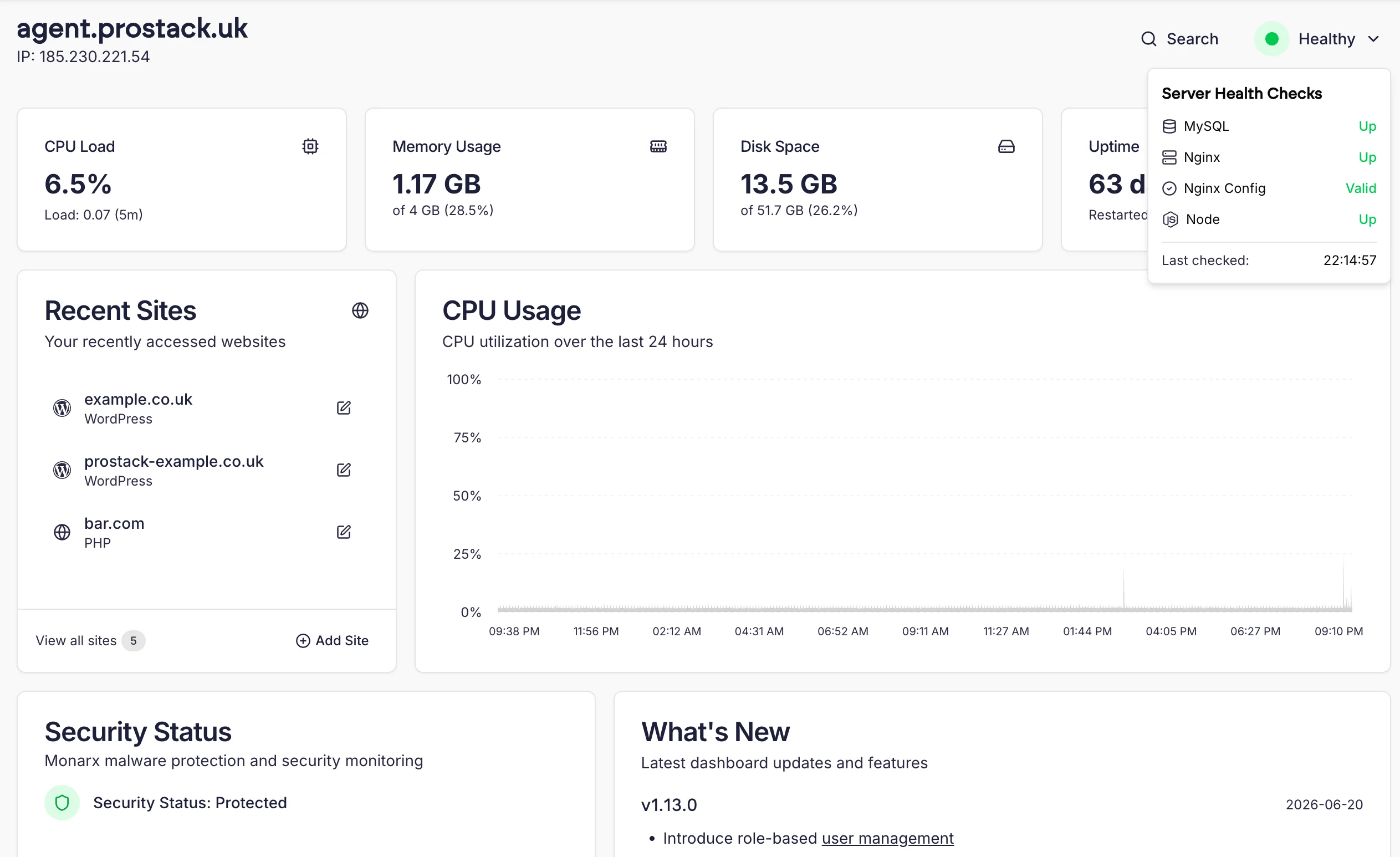
Once logged in, you'll see the Cito homepage. This will give you an overview of the server resources, allow you to view recent sites, and show you backup restore points.
 ## Add your SSH key
We use keys, rather than passwords, for SSH and SFTP access. You can add your public key to the 'Managed Keys' page in the dashboard, and from there, assign it to individual sites.
* If you dont have a key pair yet, you can [generate one](/getting-started/ssh-keys).
* If you have a public key, add it via [Managed Keys](/deploying/ssh).
## Create a site
To learn how to create a new site in Cito, visit [Add a new site](/creating-sites/overview).
**Migrating from another host?**
If you're migrating from another host, we'll create sites for you, but you'll still need to add your SSH key(s).
As part of the [migration process](https://prostack.uk/migrate-hosting-to-prostack/) we'll supply you with Preview URLs to enable you to test your sites.
## Assign keys to individual sites
Once you've created a new website, you can assign a key to it by clicking on the Site settings menu, then **SSH Access**
## Add your SSH key
We use keys, rather than passwords, for SSH and SFTP access. You can add your public key to the 'Managed Keys' page in the dashboard, and from there, assign it to individual sites.
* If you dont have a key pair yet, you can [generate one](/getting-started/ssh-keys).
* If you have a public key, add it via [Managed Keys](/deploying/ssh).
## Create a site
To learn how to create a new site in Cito, visit [Add a new site](/creating-sites/overview).
**Migrating from another host?**
If you're migrating from another host, we'll create sites for you, but you'll still need to add your SSH key(s).
As part of the [migration process](https://prostack.uk/migrate-hosting-to-prostack/) we'll supply you with Preview URLs to enable you to test your sites.
## Assign keys to individual sites
Once you've created a new website, you can assign a key to it by clicking on the Site settings menu, then **SSH Access**
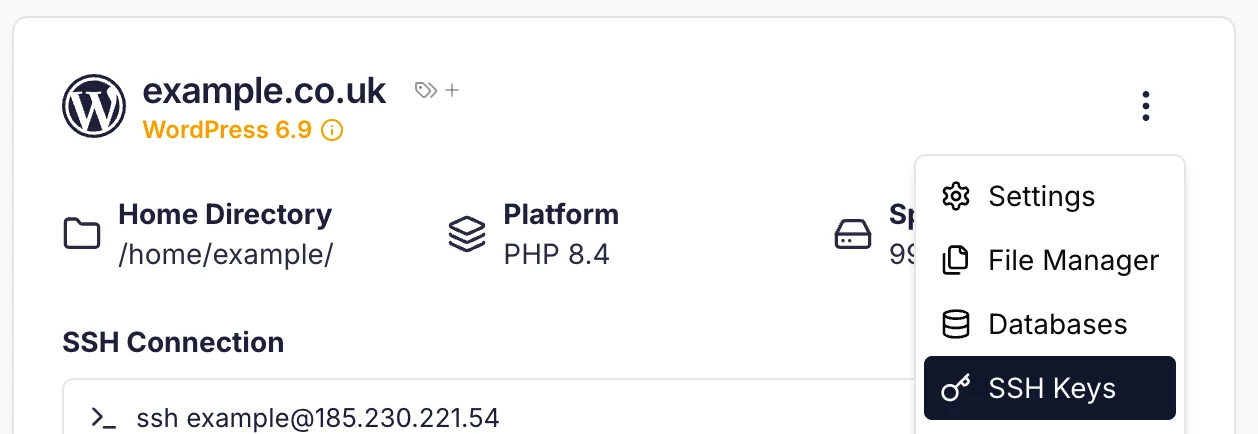 From here you can select keys and assign them to sites. More information can be found at [Managed Keys](/deploying/ssh).
## Adding additional users
You can add additional users to your Cito server, or grant them permissions to specific sites, by following the guide [here](/account/authentication).
## Getting Support
As part of your onboarding you'll be assigned a dedicated engineer to answer any questions you may have. You can use the links below to get in touch.
From here you can select keys and assign them to sites. More information can be found at [Managed Keys](/deploying/ssh).
## Adding additional users
You can add additional users to your Cito server, or grant them permissions to specific sites, by following the guide [here](/account/authentication).
## Getting Support
As part of your onboarding you'll be assigned a dedicated engineer to answer any questions you may have. You can use the links below to get in touch.