> ## Documentation Index
> Fetch the complete documentation index at: https://citodocs.prostack.host/llms.txt
> Use this file to discover all available pages before exploring further.
# Cron Jobs
> Create and manage scheduled tasks via the dashboard or SSH
Scheduled tasks (known as `cron jobs`) can be created and managed via the Cito dashboard, or via SSH.
## Via the dashboard
Cron Jobs can be found via the Site settings page, by clicking the right hand menu icon next to a site card, then Settings.
From here you'll be able to view a list of existing cron jobs, and edit or delete them.
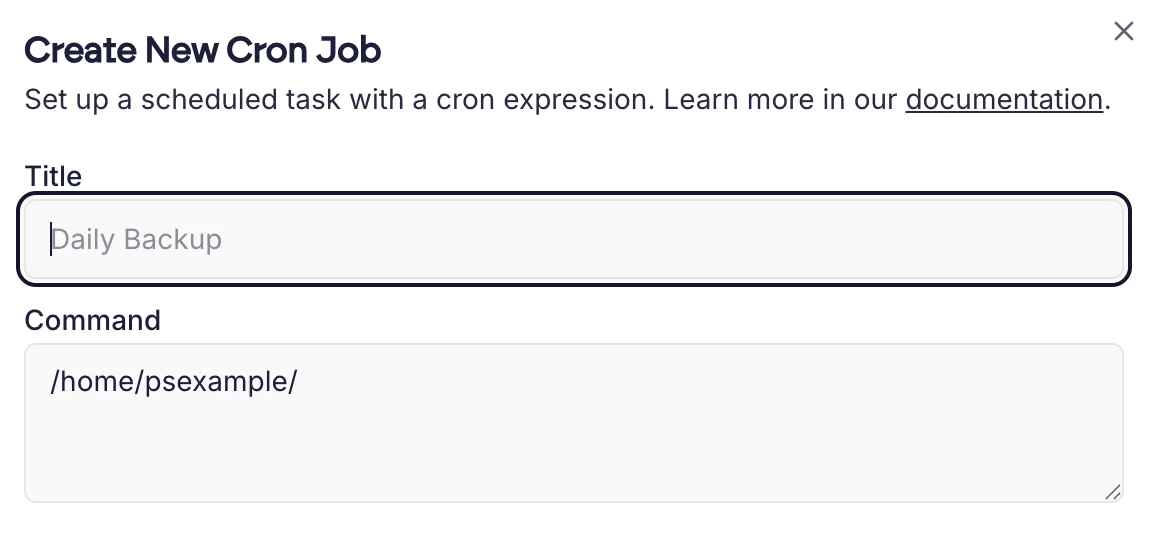
 To add a new cron, click **Add Cron Job**. You should fill in the form with a name and the command you wish to run.
 ### Example commands
If you have a PHP file `mycron.php` in `/home/example`, you can call it using the following command:
```bash theme={null}
/usr/bin/php /home/example/mycron.php
```
You can specify the cron expression using our AI generator, or by filling it out manually. The AI generator takes a natural language expression and converts it into cron syntax automatically.
### Example commands
If you have a PHP file `mycron.php` in `/home/example`, you can call it using the following command:
```bash theme={null}
/usr/bin/php /home/example/mycron.php
```
You can specify the cron expression using our AI generator, or by filling it out manually. The AI generator takes a natural language expression and converts it into cron syntax automatically.
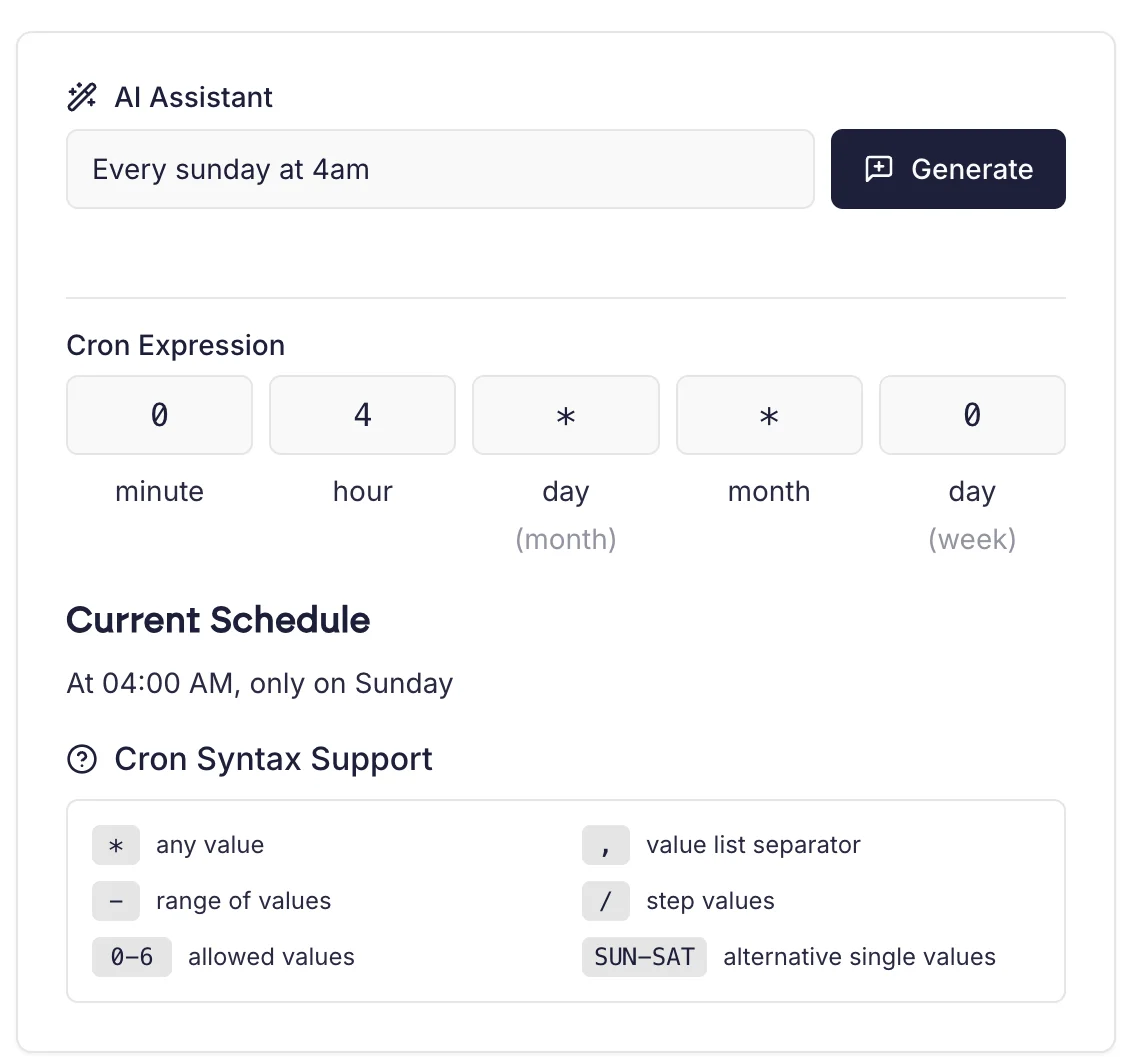 In the example above we've converted "every sunday at 4am" to the cron expression `0 4 * * 0`.
Once you have set the cron schedule, you can click **Create Cron Job**.
## Via SSH
You can edit and manage cron jobs via the command line with the `crontab` command.
### Listing existing crons
```bash theme={null}
crontab -l
crontab -l -u
```
### Editing the crontab file
```bash theme={null}
crontab -e -u
```
Crons should always be run as the relevant user. Do not run crons as `admin` or `root`.
In the example above we've converted "every sunday at 4am" to the cron expression `0 4 * * 0`.
Once you have set the cron schedule, you can click **Create Cron Job**.
## Via SSH
You can edit and manage cron jobs via the command line with the `crontab` command.
### Listing existing crons
```bash theme={null}
crontab -l
crontab -l -u
```
### Editing the crontab file
```bash theme={null}
crontab -e -u
```
Crons should always be run as the relevant user. Do not run crons as `admin` or `root`.