If you’ve just received your welcome email and aren’t sure how to get started with Cito, this guide will help. Below we explain the basics of logging in, adding keys, and creating a site.

Log in

To log in, visit https://cito.prostack.uk. You will be asked for your email address, and we’ll send a magic link to verify your email. Once your email address has been verified you’ll be prompted to set up either a Passkey or two-factor authentication (TOTP).

Log into Cito

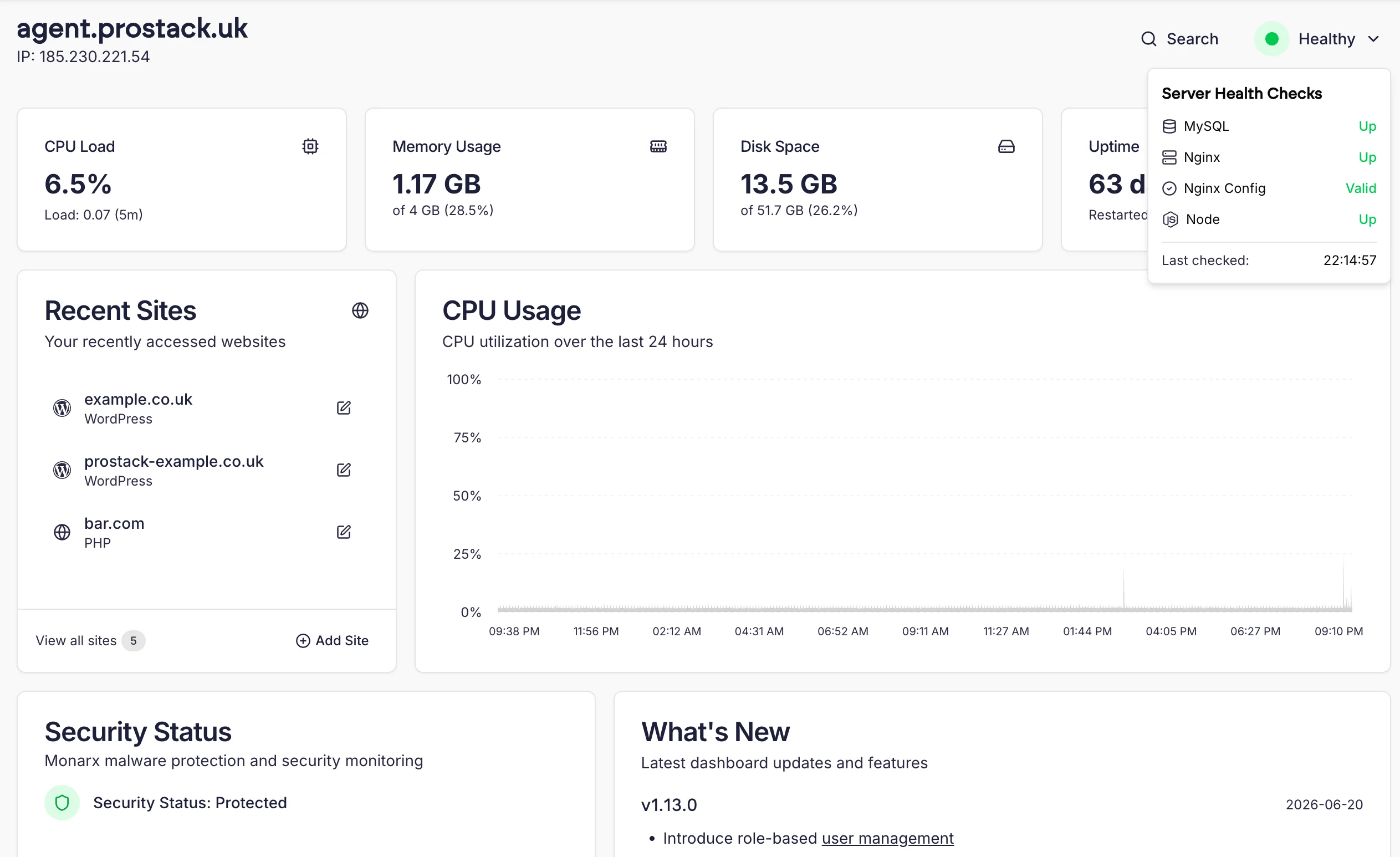
Once logged in, you’ll see the Cito homepage. This will give you an overview of the server resources, allow you to view recent sites, and show you backup restore points. Cito Homepage

Add your SSH key

We use keys, rather than passwords, for SSH and SFTP access. You can add your public key to the ‘Managed Keys’ page in the dashboard, and from there, assign it to individual sites.

Create a site

To learn how to create a new site in Cito, visit Add a new site.
Migrating from another host?If you’re migrating from another host, we’ll create sites for you, but you’ll still need to add your SSH key(s).As part of the migration process we’ll supply you with Preview URLs to enable you to test your sites.

Assign keys to individual sites

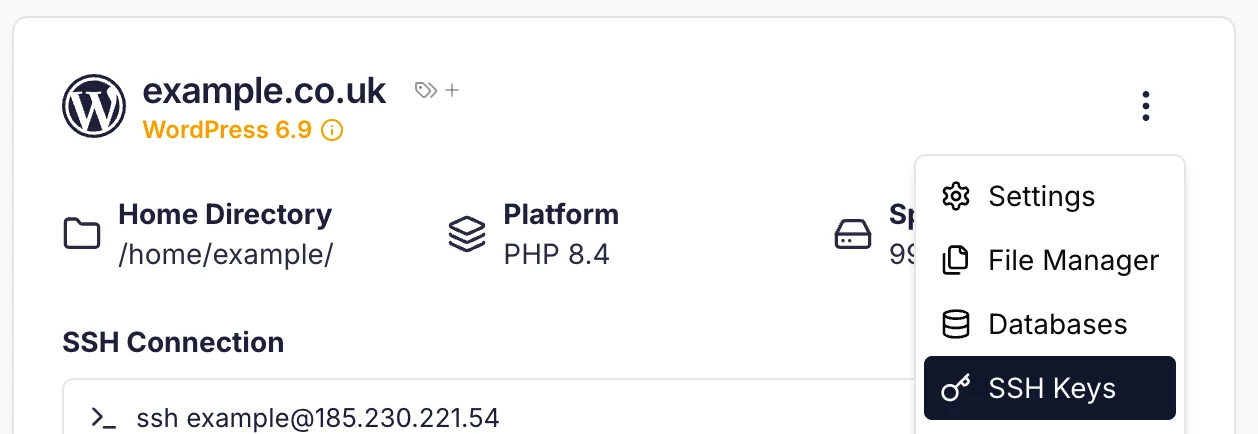
Once you’ve created a new website, you can assign a key to it by clicking on the Site settings menu, then SSH Access SSH Access from Site Card From here you can select keys and assign them to sites. More information can be found at Managed Keys.
Adding additional users

You can add additional users to your Cito server, or grant them permissions to specific sites, by following the guide here.

Getting Support

As part of your onboarding you’ll be assigned a dedicated engineer to answer any questions you may have. You can use the links below to get in touch.

Open a ticket

Email support